How to print a shipping label safely.
Use this page to refresh Shopify orders, verify order details, choose Shipping or On Set, create a Zipto label, and sync tracking back to Shopify.
本页面用于员工刷新 Shopify 订单、检查订单、选择邮寄或现场安装、创建 Zipto label,并同步 tracking 回 Shopify。
不确定时,不要点击 Shipping。先打开 Details,复制问题,联系管理员。
1. Open The Workbench
- Open https://shopify-zipto.pages.dev/.
- Sign in with your employee account.
- Confirm the top-right status shows Online.
- Confirm System, Shopify Config, and Zipto Config show Ready, and Zipto environment shows Production.
If any status is not Ready, stop and contact an administrator. 如果任何状态不是 Ready,请停止操作并联系管理员。
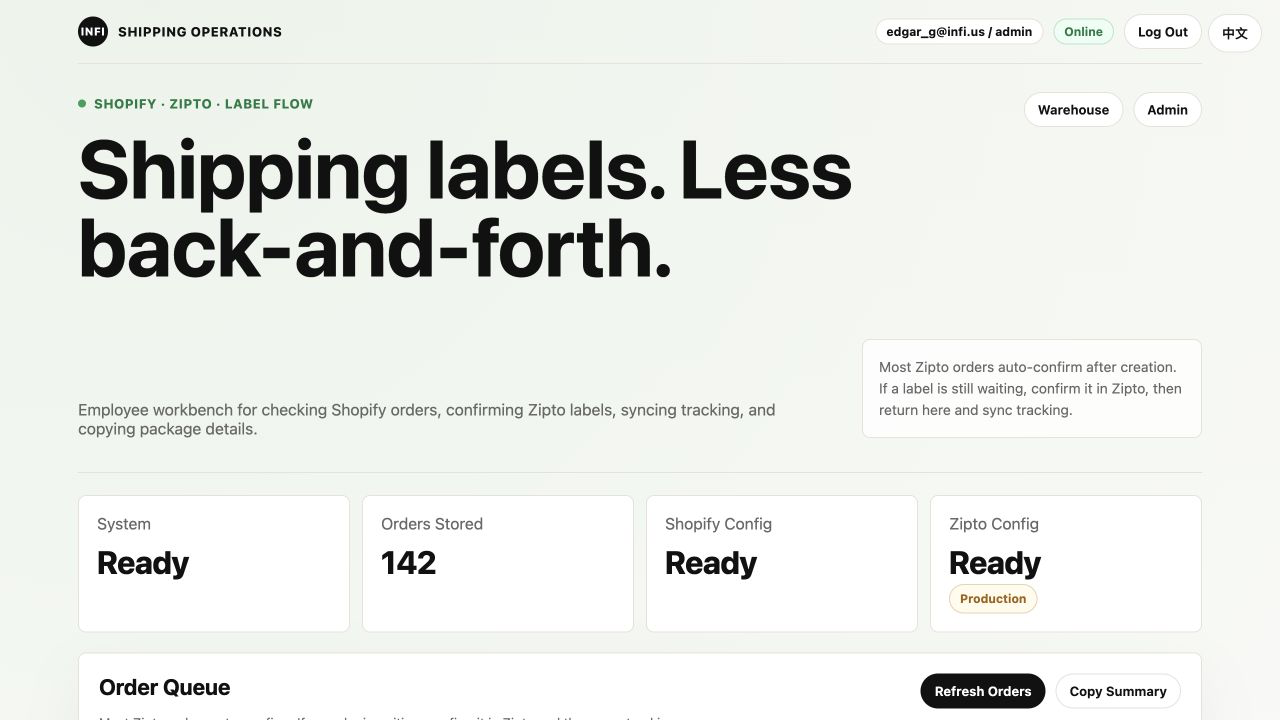
Screenshot 1: Workbench status cards and Refresh Orders in the Order Queue header.
2. Refresh New Shopify Orders
- Go to the Order Queue section.
- Click Refresh Orders.
- Wait until the page finishes loading.
- Confirm the newest Shopify orders are shown at the top.
Refreshing only imports the latest Shopify order information. It does not create a Zipto label. 点击刷新只会同步 Shopify 最新订单,不会创建 Zipto label。
3. Read The Order Status Before Printing
| Status | Meaning | Employee action |
|---|---|---|
| Queued | The order is ready for review. | Open Details, verify the order, then choose Shipping or On Set. |
| Needs Review | The previous attempt had an issue. | Open Details, read the error, and contact an administrator if unsure. |
| On Hold | Shopify has placed the order on hold. | Do not print unless a manager confirms the hold was reviewed. |
| Completed | Label/tracking work is already complete. | Do not print again. |
| On Set | Staff will install at the customer site. | Do not create a Zipto shipping label. |
| Fulfilled in Shopify | Shopify already shows fulfilled. | Use for reference only; do not print another label. |
4. Open Details And Verify The Order
Before clicking Shipping, click Details.
- Shopify order number
- Order status
- Product names and quantities
- Shopify SKU and Zipto SKU
- Existing Zipto order number, if any
- Existing tracking number, if any
- Error message, if any
If the order already has a Zipto order or tracking number, do not click Shipping again unless an administrator tells you to retry. 如果已经有 Zipto order 或 tracking,不要重复点击 Shipping,除非管理员确认可以重试。
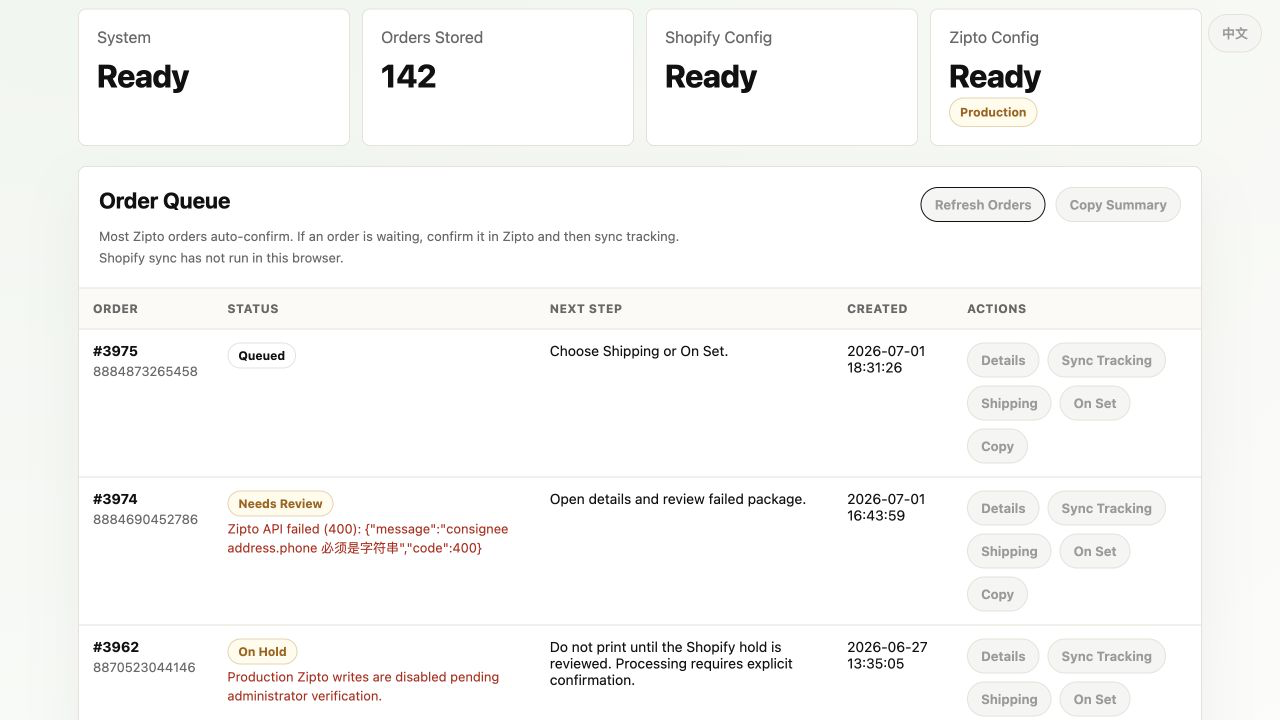
Screenshot 2: Order Queue actions: Details, Sync Tracking, Shipping, and On Set.
5. Decide: Shipping Or On Set
| Button | Use when | Result |
|---|---|---|
| Shipping | The customer needs the equipment mailed. | Creates a Zipto outbound order and shipping label. |
| On Set | Staff will install at the customer site. | Marks the order as On Set and does not create a Zipto label. |
For Chicago-area orders, the system may ask you to confirm that the order is really a shipping order. Read the prompt carefully. 芝加哥附近的订单可能会弹出确认提示,请确认这是邮寄订单,不是现场安装订单。
6. Print A Shipping Label
Only click Shipping after all checks are complete.
- Confirm the order is not On Hold.
- Confirm the order is not a local On Set installation.
- Confirm products and quantities are correct.
- Click Shipping one time only.
- Wait for the result.
- Do not click Shipping again while the system is working.
The system sends the order to Zipto, confirms the Zipto outbound order when possible, and stores the Zipto order and tracking status. 系统会把订单发送给 Zipto,并尽量自动确认出库单,同时保存 Zipto order 和 tracking 状态。
7. If Zipto Needs Manual Confirmation
- Open Details.
- Copy the Zipto order number.
- Open Zipto and confirm the outbound order manually, or ask an administrator to confirm it.
- Return to the Shopify-Zipto workbench.
- Click Sync Tracking.
Do not create a second label just because confirmation is waiting. 不要因为 Zipto 还在等待确认就重复创建 label。
8. Sync Tracking Back To Shopify
- Click Sync Tracking after Zipto has a tracking number.
- Open Details.
- Confirm the tracking number appears.
- Confirm the package products match the order.
- If Shopify still has an open fulfillment order, the system will attempt to write tracking back to Shopify.
If Shopify says there is no open fulfillment order, the app can still store and show Zipto tracking locally. 如果 Shopify 已经没有可履行订单,系统仍然可以在本地显示 Zipto tracking。
9. Report Information For Support
When reporting an issue, open Details, take a screenshot if needed, and include:
- Shopify order number
- Current status
- Zipto order number, if available
- Tracking number, if available
- Error message
- What you clicked
Never send passwords, API keys, tokens, or customer payment information. 不要发送密码、API Key、Token 或客户付款信息。
10. Stop Conditions
- The Shopify order is missing after refresh.
- The order is On Hold.
- The order is cancelled.
- The device, quantity, or SKU looks wrong.
- The customer address is incomplete.
- Zipto returns an error.
- A Zipto order already exists but tracking is missing.
- You are unsure whether the order is Shipping or On Set.
11. End-Of-Shift Checklist
- Refresh orders one final time.
- Review any Needs Review orders.
- Report any On Hold, failed, or waiting Zipto orders.
- Confirm completed labels have tracking numbers.
- Log out of the workbench.
Final reminder: When in doubt, do not click Shipping. Open Details, copy the issue, and ask an administrator.
不确定时,不要点击 Shipping。先打开 Details,复制问题,联系管理员。